Event though Debian is considered as one of the most stable Linux distributions out there, part of it's stability comes from the fact that a large portion of it's package base consists of well-tested but outdated packages. This should be a blessing most of the times but if you are a developer like me, some times you may need a latest or specific version of a package. In this case, I needed the latest version of the mysql-server package. Although official apt repository is available from MySQL to install the latest version of it on Debian, to be able to run something in containers has it's own advantages including having the ability to run multiple versions of the same package simultaneously and can be easily cleaned up after using.
Posts for: #Debian
Fix for incorrect rendering of Indic fonts in Firefox on Debian
Debian Stretch, the current stable release of Debian now comes with Firefox ESR 60. One strange issue I have noticed with the out of the box configuration of Firefox on Debian is that it does not correctly render the Indic fonts on the websites. Most notable issue is that it breaks the connected letters while showing. Here's how I fixed it.
- Install the fonts-indic package.
sudo apt install fonts-indic - Now open Firefox and go to Preferences > General > Language and Appearance > Fonts & Colors and click on Advanced. Select the language you want to set fonts for from the "Fonts for" dropdown and select fonts with your specific language support for Serif and Sans-serif fonts, click Ok.
Here's how my settings looks like:
How to fix Eclipse IDE flickering issue on Debian
I am using Eclipse IDE (version 2018-12 at the time of writing) on Debian 9 Xfce and the issue with it is that the Eclipse editor windows would flicker around the edges. Sometimes so much so that it's impossible to type inside it. Here's how I fixed it:
First check the value of GTK_IM_MODULE in your environment by executing
echo $GTK_IM_MODULEIn my case the output was "xim". But Eclipse expect it to be "ibus". So enter the following command in a terminal session to set it to the value.
Format USB drive after installing Debian from it
If you have used an USB drive to write iso images to before installing Debian or recent versions of Ubuntu, here are the steps to reclaim it after installation is over.
- Open a terminal and list the available device names using the following command:
lsblkwhich should show you an output like the one below:
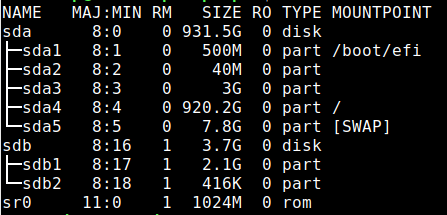
- Identify the device name of your USB drive. Extreme caution should be taken while at it because wrong device names can potentially wipe your entire hard disk. In this case, the USB drive that we want to format is sdb.
- Writing the iso image to the USB drive has made it a read-only device. To change it back, the partition table needs to broken. Issue the below command after replacing sdb with the device name identified in the previous step:
sudo dd if=/dev/zero of=/dev/sdb bs=1M && syncThis step might take some time to complete depending upon the size of the USB drive. So be patient. When it is over, you should see an output like the below:
Creating an unpriviledged lxc container on Debian Stretch
After a few earlier failed attempts, today I was successfully able to create an unprivileged LXC container on Debian Stretch for the first time. I had experience of using LXC's more user friendly cousin LXD before I moved to Debian but unfortunately LXD is not available on Debian yet. While LXC is more low level compared to LXD, if you just need a basic container, it's still pretty solid. The Debian wiki on LXC container is fairly straight forward and easy to follow, but still for someone who is a novice to both Debian and LXC, it is very easy to get lost. So I am writing this post so that it can be a good place to start if you need a very basic setup.